How to Install iRedMail on CentOS 7 & RHEL 7
iRedMail is out of the box open source mail server solution on Linux like operating system. The beauty of iRedMail is that it provides web based admin panel from where mail admin or system admins can do all email related operations task. Some of other features are listed below :
Support unlimited email accounts.
It provides Roundcube as webmail (MUA )
It used Postfix as MTA & Dovecot as MDA
It pvoides Calendar service via CalDAV & Contact service via CardDAV
It uses SpamAssassin for Spam scan and Amavis & Clamav for Mail virus scan.
OpenLDAP, MariaDB and PostgreSQL can be used to save mail accounts
In this article we will demonstrate how to install and configure iRedMail on CentOS 7 & RHEL 7. I am going to use followings for iRedMail setup.
OS = CentOS 7 or RHEL 7
Domain = nsitmail.com
Server Hostname = mail.nsitmail.com
Note : In case if you want mails from your mail server to be delivered in inbox not in spam folder then update the DNS records like A & PTR before installation and TXT ( SPF & DKIM ) after installation.
Step:1 Set hostname and disable Selinux.
Set the proper hostname using hostnamectl command if it is not set.
[root@mail ~]# hostnamectl set-hostname mail.nsitmail.com
[root@mail ~]# hostname -f
mail.nsitmail.com
[root@mail ~]#
Update the /etc/hosts file
127.0.0.1 mail.nsitmail.com localhost.localdomain localhost
Disable Selinux
[root@mail ~]# setenforce 0
Edit the file /etc/sysconfig/selinux , set the parameter “SELINUX=disabled” , Reboot the server to disable selinux completely.
Step:2 Download the tar file of iRedmail.
Download the latest version of iRedmail from their Official Web Site or use below wget command to download from terminal.
[root@mail ~]# wget https://bitbucket.org/zhb/iredmail/downloads/iRedMail-0.9.3.tar.bz2
Step:3 Extract the tar file & execute installation Script.
[root@mail ~]# ll
total 124
-rw-r--r-- 1 root root 126277 Dec 20 19:12 iRedMail-0.9.3.tar.bz2
[root@mail ~]#
[root@mail ~]# tar -jxvf iRedMail-0.9.3.tar.bz2
[root@mail ~]# cd iRedMail-0.9.3
[root@mail iRedMail-0.9.3]# sh iRedMail.sh
After couple of seconds , below screen will appear , Select yes and press enter.

Define the folder or directory where users mailbox will be stored.

Select the web Server for iRedmail. Default is Nginx.

Select the database of your choice which will store domain names and mail accounts. In my case i am using MariaDB.

Define the domain name for your mail server. In my case domain name is “nsitmail.com”

Set Password for postmaster account.

Select Optional Components of iRedmail installation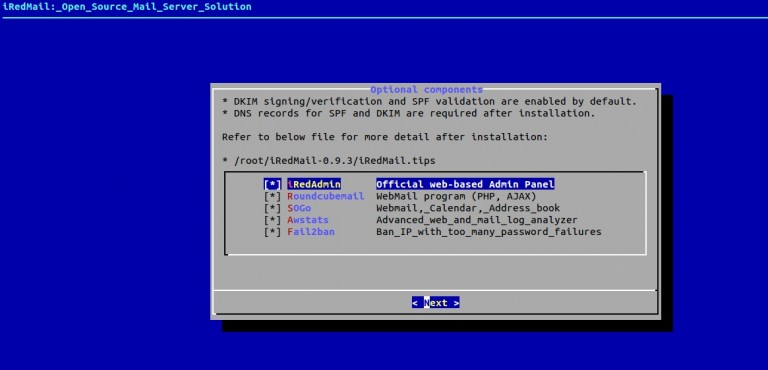
Press “y” to continue installation, Mail Server info & Credentials are kept in the file “/root/iRedMail-0.9.3/config”. Please keep this file in secure place.


As per instructions , reboot the server to enable all mail services.
Postfix mail logs and iRedmail logs are stored in “/var/log/maillog” and “/var/log/iredapd/iredapd.log” respectively.
Note : Default administrator name is “postmaster@nsitmail.com”
Following are the Important URLs after the Installation is completed , replace the domain name as per your setup in mentioned URLs.
iRedAdmin – official web-based admin panel:
https://mail.nsitmail.com/iredadmin/
Username: postmaster@nsitmail.com, password: XXXXXXXXXX
Roundcube webmail URL :
http://mail.nsitmail.com/mail/
SOGo Groupware
https://mail.nsitmail.com/SOGo/
Step:4 Create Users & domain from Admin Panel.
To create users first login to admin panel. Use user name as “postmaster@<domain>” and password that we set during installation.


Click on Add option and then Select Users.

Add a new Domain :
From the admin Panel , Select “Domain & accounts” option and then click on Add domain

Define the domain name & Organization Name and then further we can create users on newly created domain.

Step:5 Access Roundcube (Webmail).
Open the url in the browser “https://mail.nsitmail.com/mail/” , replace the domain name as per your setup.
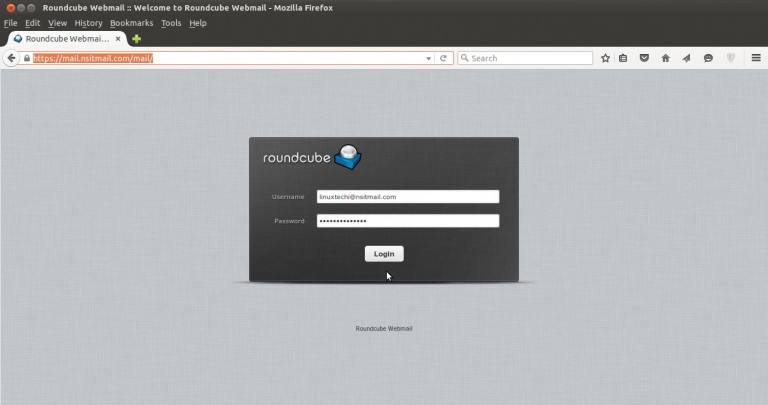

Send a test mail to verify the functionality.

As we see that i got the mail from iRedmail mail server, so we can say the iRedmail is successfully installed and configured.
Configure CUPS Printing Server on CentOS
Configure CUPS Printing on CentOS
when you need to setup a CentOS Linux print server, CUPS (Common UNIX Printing System)to the rescue!
login to your server, and su to root.
1- Install CUPS
yum install cups
2- Install dependency
yum install ghostscript.x86_64 hplip-common.x86_64
3-start the cups service, and then set to to run on startup
service cups start
chkconfig cups on
to best administer CUPS we need to configure the web GUI
vim /etc/cups/cupsd.conf
add the following line to the top (this allows easy administration)
DefaultEncryption Never
safelist your network to allow access

–obviously you want to enter the IP of the server here, rather than what i have,
now allow your local subnet to have access to the web GUI

that’s just for the web access, but for the ADMIN pages, you may want to lock it down further:
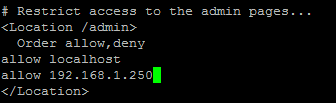
save + quit after all configured
also make sure to allow the port through IPtables (if enabled)
restart the cups service once completed

browse to https://serverip:631

That is all
HOW TO INSTALL VESTA CP
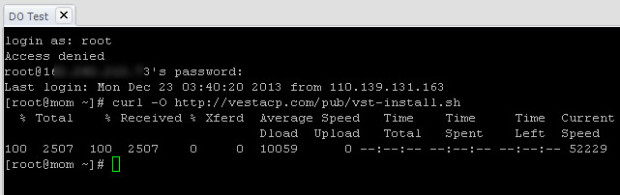
Step 1 – First, login to your server’s shell via SSH as root, as always, for this task I use putty.
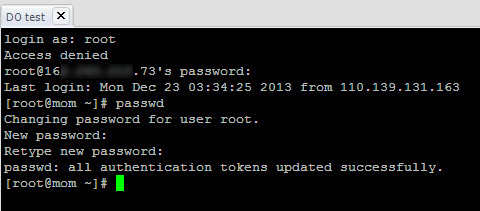
Step 2 – Next, download VestaCP installation script using curl command:
curl -O http://vestacp.com/pub/vst-install.sh
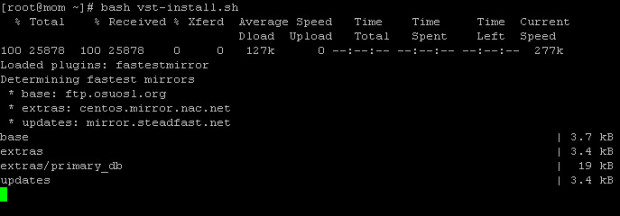
Step 3 – Next, issue this magic command to start installing VestaCP:
bash vst-install.sh
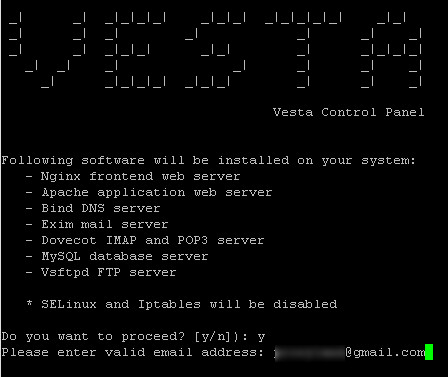
Step 4 – The installer asks to confirm disabling SELinux and start the install process. Type Y and hit Enter.
Step 5 – The installer also asks to enter valid email address. So type your valid email address and double-check it to make sure your email is correct because VestaCP will also send your admin password there.
Step 6 – Once you hit Enter on your keyboard, the installer starts. Sit tight and wait for the installerto process and finish its job.
Step 7 – As long as you found no fatal error, the installer should finish quicker and you will see something like this on your screen:
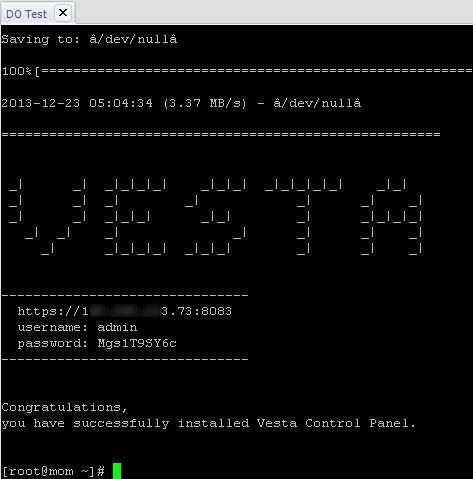
You can also check your mailbox just to ensure the password is delivered and mail server (Exim) works properly on your server.
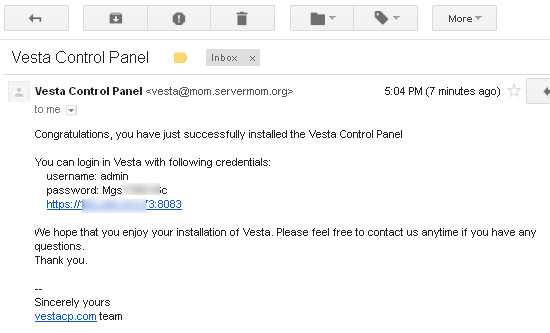
Step 8 – Now open up your favorite browser and login to VestaCP web-based UI using your VPS IP at port 8083.
https://xxx.xxx.xxx.xxx:2083/
Login as admin and use given password,
As you may also aware that the link is https:// which means via secure connection (SSL) so you may have to add / confirm exception on your browser.
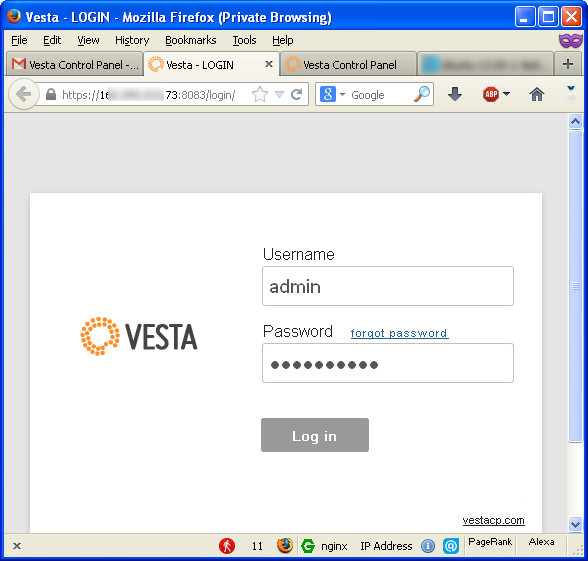
Voila! You should now see the main UI of Vesta hosting control panel.
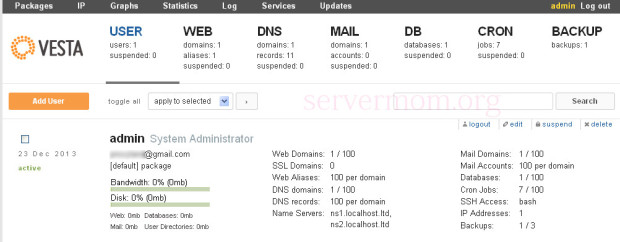 *click on image to view larger size.
Congratulation! You now have Vesta CP installed and a ready-to-use VPS to host all your websites.
CentOS 7 / RHEL 7 : Reset / Recover forgotten root password
In this post we will learn, how to reset / recover forgotten root password on CentOS 7 / RHEL 7 (Red Hat Enterprise Linux 7). On RHEL 5/6 or CentOS 5/6 series , the method of resetting forgotten root password was same. In latest RHEL 7 / CentOS 7 this time we have found some difference in steps to reset the forgotten root password.
Earlier, root password were used to recover from runlevel in case the boot loader password is not set.
Reset / Recover forgotten root password on CentOS 7 / RHEL 7
Follow the given below procedure to reset forgotten root password.
Step 1: Reboot or start the system, edit grub2
Restart/start the system and on getting GRUB 2 boot screen, first press ESC key so that screen get stopped. Then press e key for editing

Step 2: Initialize the /bin/sh
Now in next screen, scroll down with the help of arrow key and search for any of these two keyword linux16 or linuxefi on UEFI systems.In our case, we have linux16.
Disable rhgb and quiet parameters in order to enable system messages.
In first screenshot you can see, we first scrolldown to line starting with keyword called linux16 . Now remove the parameter rhgb and quiet .

In second screenshot you can see, we have removed the rhgb and quiet parameter
Add the below given parameter at the end of line, to initialize the sh shell.
init=/bin/sh
Now press CTRL with x keyword to boot the system. .

Step 3: Remount / root partition , reset root password and autorelable
The filesystem will be in read only mode, hence run the below given command so that you can write on filesystem
mount -o remount, rw /
Now reset root password with given below command
passwd root
Reconfirm the root password.
NOTE: In case system is not writable, the passwd tool fails with the following error:
Authentication token manipulation error
Now run the below given command for relabeling the SELINUX
touch /.autorelabel
Now restart the system. You can use any one of the command.
exec /sbin/init
OR
exec /sbin/reboot
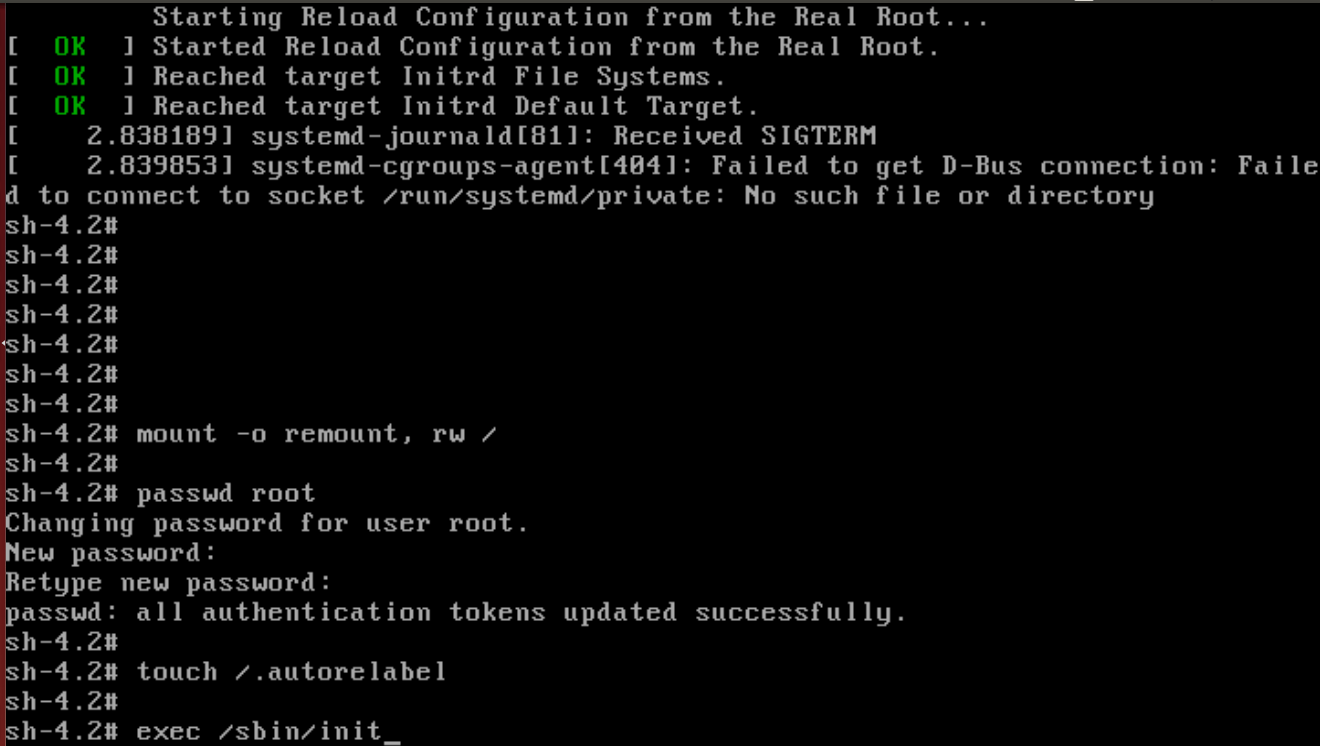
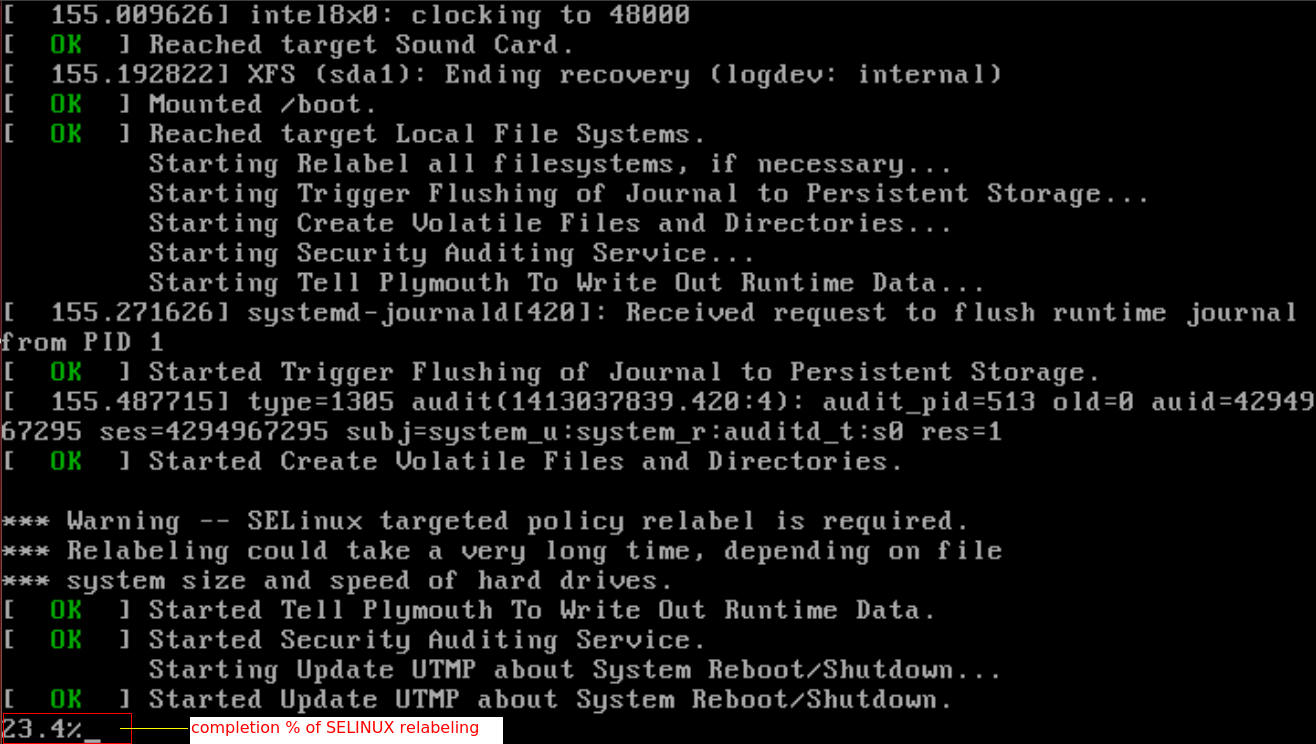
You will see the system is going to reboot and stuck for a short time. Just wait for a few seconds or minute. Keep pay attention that the screen is stopped when SELIUX relabeling info message appeared on screen.
After a few moment, you will see at the bottom of screen some numerical percentage is running. It states about the completion of selinux relabeling in percentage. After completing 100% , the system will be rebooted.
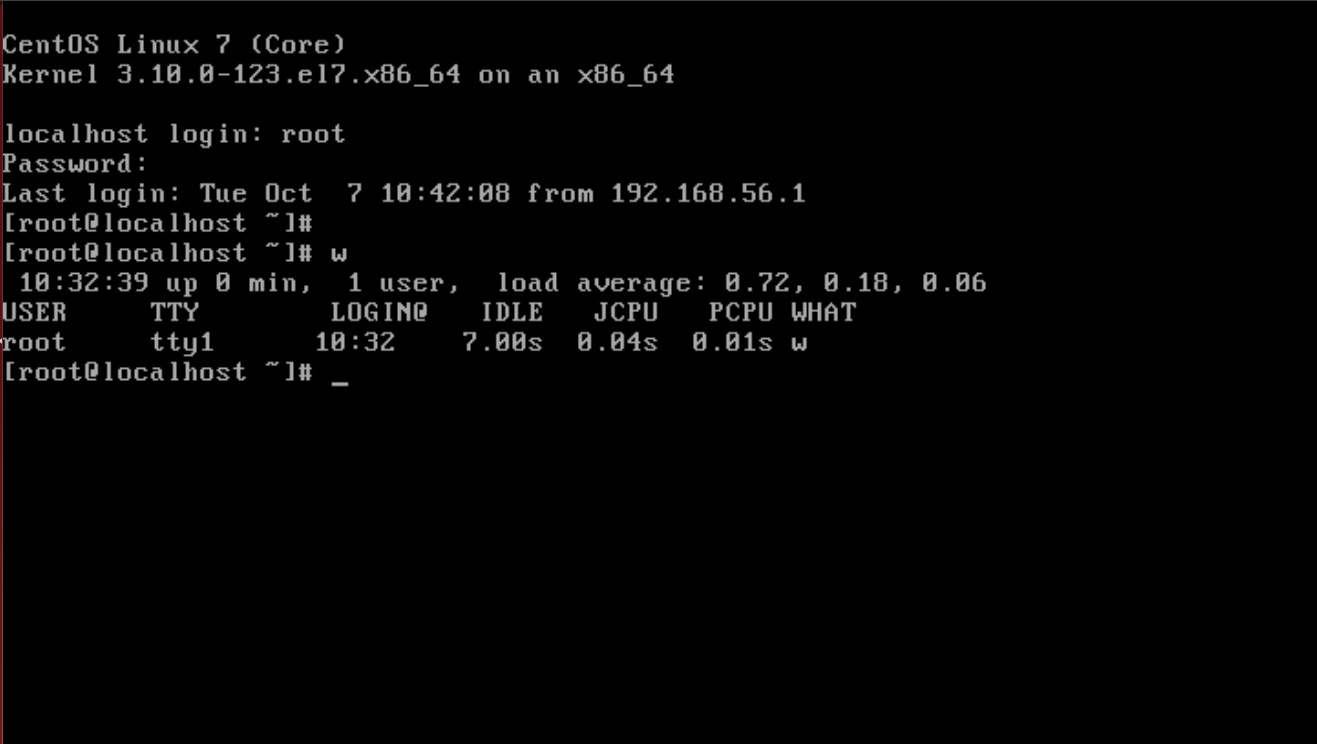
After successful booting, you can use your new root password for login into system.
That is all!
Install Apache, PHP And MySQL On CentOS 7 (LAMP)
This tutorial shows how you can install an Apache2 webserver on a CentOS 7.0 server with PHP5 support (mod_php) and MySQL support. LAMP is short for Linux, Apache, MySQL, PHP.
1 Preliminary Note
In this tutorial, I use the hostname server1.example.com with the IP address 192.168.0.100. These settings might differ for you, so you have to replace them where appropriate.
I will add EPEL-7 repo here to install latest phpMyAdmin as follows:
rpm -ivh http://dl.fedoraproject.org/pub/epel/7/x86_64/e/epel-release-7-5.noarch.rpm
2 Installing MySQL 5
To install MySQL, we do install mariadb like this:
yum -y install mariadb-server mariadb
Then we create the system startup links for MySQL (so that MySQL starts automatically whenever the system boots) and start the MySQL server:
systemctl start mariadb.service
systemctl enable mariadb.service
Set passwords for the MySQL root account:
mysql_secure_installation
Return:
[root@server1 ~]# mysql_secure_installation
/usr/bin/mysql_secure_installation: line 379: find_mysql_client: command not found

NOTE: RUNNING ALL PARTS OF THIS SCRIPT IS RECOMMENDED FOR ALL MariaDB
SERVERS IN PRODUCTION USE! PLEASE READ EACH STEP CAREFULLY!

In order to log into MariaDB to secure it, we'll need the current
password for the root user. If you've just installed MariaDB, and
you haven't set the root password yet, the password will be blank,
so you should just press enter here.

Enter current password for root (enter for none): <--ENTER
OK, successfully used password, moving on...

Setting the root password ensures that nobody can log into the MariaDB
root user without the proper authorisation.

Set root password? [Y/n]
New password: <--yourmariadbpassword
Re-enter new password: <--yourmariadbpassword
Password updated successfully!
Reloading privilege tables..
... Success!
By default, a MariaDB installation has an anonymous user, allowing anyone
to log into MariaDB without having to have a user account created for
them. This is intended only for testing, and to make the installation
go a bit smoother. You should remove them before moving into a
production environment.

Remove anonymous users? [Y/n] <--ENTER
... Success!

Normally, root should only be allowed to connect from 'localhost'. This
ensures that someone cannot guess at the root password from the network.

Disallow root login remotely? [Y/n] <--ENTER
... Success!

By default, MariaDB comes with a database named 'test' that anyone can
access. This is also intended only for testing, and should be removed
before moving into a production environment.

Remove test database and access to it? [Y/n] <--ENTER
- Dropping test database...
... Success!
- Removing privileges on test database...
... Success!

Reloading the privilege tables will ensure that all changes made so far
will take effect immediately.

Reload privilege tables now? [Y/n] <--ENTER
... Success!

Cleaning up...

All done! If you've completed all of the above steps, your MariaDB
installation should now be secure.

Thanks for using MariaDB!
[root@server1 ~]#
3 Installing Apache2
CentOS 7.0 ships with apache 2.4. Apache2 is directly available as a CentOS 7.0 package, therefore we can install it like this:
yum -y install httpd
Return:
[root@server1 ~]# yum install httpd
Loaded plugins: fastestmirror, langpacks
Loading mirror speeds from cached hostfile
* base: ftp.plusline.de
* extras: mirror.23media.de
* updates: mirror.23media.de
Package httpd-2.4.6-17.el7.centos.1.x86_64 already installed and latest version
Nothing to do
[root@server1 ~]#
By default apache will be installed, if-not then please install it as shown above
Now configure your system to start Apache at boot time…
systemctl start httpd.service
systemctl enable httpd.service
In CentOS 7.0 uses Firewall-cmd, so I will customize it to allow external access to port 80 (http) and 443 (https).
firewall-cmd --permanent --zone=public --add-service=http
firewall-cmd --permanent --zone=public --add-service=https
firewall-cmd --reload
Now direct your browser to http://192.168.0.100, and you should see the Apache2 placeholder page:

4 Installing PHP5
We can install PHP5 and the Apache PHP5 module as follows:
yum -y install php
We must restart Apache afterwards:
systemctl restart httpd.service
5 Testing PHP5 / Getting Details About Your PHP5 Installation
The document root of the default website is /var/www/html. We will now create a small PHP file (info.php) in that directory and call it in a browser. The file will display lots of useful details about our PHP installation, such as the installed PHP version.
vi /var/www/html/info.php
Code:
<?php
phpinfo();
?>
Now we call that file in a browser (e.g. http://192.168.0.100/info.php):

As you see, PHP5 is working, and it’s working through the Apache 2.0 Handler, as shown in the Server API line. If you scroll further down, you will see all modules that are already enabled in PHP5. MySQL is not listed there which means we don’t have MySQL support in PHP5 yet.
6 Getting MySQL Support In PHP5
To get MySQL support in PHP, we can install the php-mysql package. It’s a good idea to install some other PHP5 modules as well as you might need them for your applications. You can search for available PHP5 modules like this:
yum search php
Pick the ones you need and install them like this:
yum -y install php-mysql
In the next step I will install some common PHP modules that are required by CMS Systems like WordPress, Joomla and Drupal:
yum -y install php-gd php-ldap php-odbc php-pear php-xml php-xmlrpc php-mbstring php-snmp php-soap curl curl-devel
Now restart Apache2:
systemctl restart httpd.service
Now reload http://192.168.0.100/info.php in your browser and scroll down to the modules section again. You should now find lots of new modules like curl etc there.:

7 phpMyAdmin installation
phpMyAdmin is a web interface through which you can manage your MySQL databases.
phpMyAdmin can now be installed as follows:
yum install phpMyAdmin
Now we configure phpMyAdmin. We change the Apache configuration so that phpMyAdmin allows connections not just from localhost (by commenting out the <Directory “/usr/share/phpmyadmin”> stanza):
vi /etc/httpd/conf.d/phpMyAdmin.conf
Code:
[...]
Alias /phpMyAdmin /usr/share/phpMyAdmin
Alias /phpmyadmin /usr/share/phpMyAdmin

#<Directory /usr/share/phpMyAdmin/>
# <IfModule mod_authz_core.c>
# # Apache 2.4
# <RequireAny>
# Require ip 127.0.0.1
# Require ip ::1
# </RequireAny>
# </IfModule>
# <IfModule !mod_authz_core.c>
# # Apache 2.2
# Order Deny,Allow
# Deny from All
# Allow from 127.0.0.1
# Allow from ::1
# </IfModule>
#</Directory>
<Directory /usr/share/phpMyAdmin/>
Options none
AllowOverride Limit
Require all granted
</Directory>

[...]
Next we change the authentication in phpMyAdmin from cookie to http:
vi /etc/phpMyAdmin/config.inc.php
Code:
[...]
$cfg['Servers'][$i]['auth_type'] = 'http'; // Authentication method (config, http or cookie based)?
[...]
Restart Apache:
systemctl restart httpd.service
Afterwards, you can access phpMyAdmin under http://192.168.0.100/phpmyadmin/:

8 Links
Apache: http://httpd.apache.org/
PHP: http://www.php.net/
MySQL: http://www.mysql.com/
CentOS: http://www.centos.org/
phpMyAdmin: http://www.phpmyadmin.net/