Categoria: Database
Database
Database

Olá Amigos.
Recentemente tive que implementar o backup diário de uma base de dados MySQL e decidi compartilhar o script para execução desta atividade.
A implementação é simples, após criado o script dentro da pasta do sistema, o mesmo foi adicionado na Crontab para rodar todos os dias a noite.
Obs: Abaixo deve ser substituído o nome da base, usuario e senha.
Script:
#!/bin/bash

#################### SCRIPT PARA BACKUP MYSQL ####################

# Definindo parametros do sistema
echo " -- Definindo parametros do sistema ..."
DATE=`date +%Y-%m-%d`
MYSQLDUMP=/usr/bin/mysqldump
BACKUP_DIR=/backup
BACKUP_NAME=mysql-$DATE.sql
BACKUP_TAR=mysql-$DATE.tar

#Gerando arquivo sql
echo " -- Gerando Backup da base de dados em $BACKUP_DIR/$BACKUP_NAME ..."
$MYSQLDUMP NOMDABASE-u USUARIO -SENHA > $BACKUP_DIR/$BACKUP_NAME

# Compactando arquivo em tar
echo " -- Compactando arquivo em tar ..."
tar -cf $BACKUP_DIR/$BACKUP_TAR -C $BACKUP_DIR $BACKUP_NAME

# Excluindo arquivos desnecessarios
echo " -- Excluindo arquivos desnecessarios ..."
rm -rf $BACKUP_DIR/$BACKUP_NAME

cd $BACKUP_DIR || exit 1
for file in mysql*tar
do
[ $file = $BACKUP_TAR ] && continue
gzip $file
done
Agendamento das execuções (crontab)
Para editar o crontab do root, com o editor padrão do sistema:
$sudo crontab -e
O comando abaixo faz crontab executar o script /opt/scripts/backup_mysql.sh todos os dias da semana às 05 a.m.
00 05 * * * /opt/scripts/backup_mysql.sh
Bom amigos, qualquer problema ou duvida fico a disposição.

Olá amigos, satisfação em escrever novamente para vocês.
Dando continuidade ao nosso ultimo artigo na qual mostra como instalar o MariaDB, hoje vamos ver como habilitar o acesso remoto para conexão com outros gerenciadores como o MySQL Workbench no MariaDB.
Inicialmente precisamos alterar o arquivo de configuração do banco para habilitar conexões remotas, no meu caso o arquivo de configuração fica em: /etc/mysql/mariadb.conf.d/50-server.cnf.
Comente a linha abaixo e salve o arquivo:
#bind-address = <some ip-address>
Agora vamos liberar o acesso do usuário com o comando abaixo, aonde temos que informar o usuário, ip do cliente e senha.
GRANT ALL PRIVILEGES ON *.* TO 'root'@'192.168.1.20' IDENTIFIED BY 'my-new-password' WITH GRANT OPTION;
Para validar a liberação você pode rodar a consulta abaixo que mostra as liberações existentes
SELECT User, Host FROM mysql.user WHERE Host <> 'localhost';
Retorno do comando:
+--------+-----------+
| User | Host |
+--------+-----------+
| daniel | % |
| root | 127.0.0.1 |
| root | 192.168.1.20 |
| root | ::1 |
| root | gandalf |
+--------+-----------+
Bom pessoal como vocês podem ver o processo é bem simples.
Qualquer problema ou duvida estou a disposição.
Olá amigos, satisfação em escrever novamente para vocês.
Hoje veremos como é simples instalar o MariaDB a partir do repositório padrão do Ubuntu.
sudo apt-get update
sudo apt-get install mariadb-server mariadb-client
Utilizaremos o comando mysql_secure_installation para iniciar a instalação do servidor MariaDB.
sudo systemctl start mariadb
sudo mysql_secure_installation
Intervenção solicitada durante a instalação:
NOTE: RUNNING ALL PARTS OF THIS SCRIPT IS RECOMMENDED FOR ALL MariaDB
      SERVERS IN PRODUCTION USE!  PLEASE READ EACH STEP CAREFULLY!

In order to log into MariaDB to secure it, we'll need the current
password for the root user.  If you've just installed MariaDB, and
you haven't set the root password yet, the password will be blank,
so you should just press enter here.

Enter current password for root (enter for none):
OK, successfully used password, moving on...

Setting the root password ensures that nobody can log into the MariaDB
root user without the proper authorisation.

You already have a root password set, so you can safely answer 'n'.

Change the root password? [Y/n] n
 ... skipping.

By default, a MariaDB installation has an anonymous user, allowing anyone
to log into MariaDB without having to have a user account created for
them.  This is intended only for testing, and to make the installation
go a bit smoother.  You should remove them before moving into a
production environment.

Remove anonymous users? [Y/n] y
 ... Success!

Normally, root should only be allowed to connect from 'localhost'.  This
ensures that someone cannot guess at the root password from the network.

Disallow root login remotely? [Y/n] y
 ... Success!

By default, MariaDB comes with a database named 'test' that anyone can
access.  This is also intended only for testing, and should be removed
before moving into a production environment.

Remove test database and access to it? [Y/n] y
 - Dropping test database...
 ... Success!
 - Removing privileges on test database...
 ... Success!

Reloading the privilege tables will ensure that all changes made so far
will take effect immediately.

Reload privilege tables now? [Y/n] y
 ... Success!

Cleaning up...

All done!  If you've completed all of the above steps, your MariaDB
installation should now be secure.

Thanks for using MariaDB!
Fazendo login como usuário root do MariaDB:
$ sudo mysql -u root -p
OU
# mysql -u root -p
Comandos para controlar o serviço MariaDB:
sudo systemctl start mariadb
sudo systemctl stop mariadb
Liberando a portal do MariaDB no Firewall:
firewall-cmd --add-port=3306/tcp
firewall-cmd --permanent --add-port=3306/tcp
Bom pessoal com isso o nosso banco já está rodando.
No próximo artigo vamos ver como criar um owner e liberar acesso externo a base.
Qualquer duvida estou a disposição.

Download Software
Download the Oracle software from OTN or MOS depending on your support status.
OTN: Oracle Database 12c Release 1 (12.1.0.2) Software (64-bit).
edelivery: Oracle Database 12c Release 1 (12.1.0.2) Software (64-bit)
This article has been updated for the 12.1.0.2 release, but the installation is essentially unchanged since 12.1.0.1. Any variations specific for 12.1.0.1 will be noted.
Depending on your version of VirtualBox and Oracle Linux, there may be some slight variation in how the screen shots look.
Unpack Files
Unzip the files.
unzip linuxamd64_12102_database_1of2.zip
unzip linuxamd64_12102_database_2of2.zip
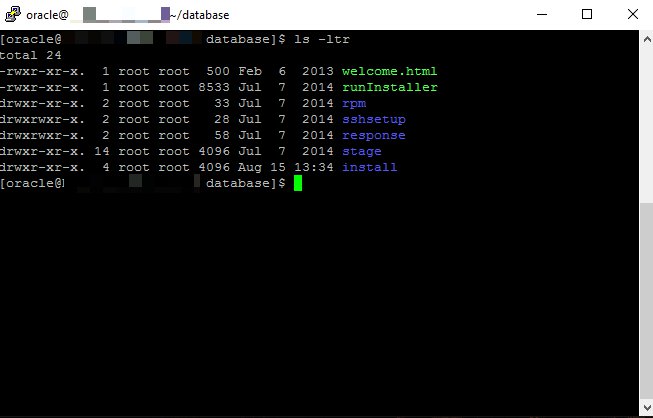
You should now have a single directory called “database” containing installation files.
Hosts File
The “/etc/hosts” file must contain a fully qualified name for the server.
<IP-address> <fully-qualified-machine-name> <machine-name>
For example.
127.0.0.1       localhost.localdomain  localhost
192.168.0.210   ol7-121.localdomain    ol7-121
Oracle Installation Prerequisites
Perform either the Automatic Setup or the Manual Setup to complete the basic prerequisites. The Additional Setup is required for all installations.
Automatic Setup
If you plan to use the “oracle-rdbms-server-12cR1-preinstall” package to perform all your prerequisite setup, issue the following command.
# yum install oracle-rdbms-server-12cR1-preinstall -y
It is probably worth doing a full update as well, but this is not strictly speaking necessary.
# yum update
Manual Setup
If you have not used the “oracle-rdbms-server-12cR1-preinstall” package to perform all prerequisites, you will need to manually perform the following setup tasks.
Add or amend the following lines in the “/etc/sysctl.conf” file.
fs.file-max = 6815744
kernel.sem = 250 32000 100 128
kernel.shmmni = 4096
kernel.shmall = 1073741824
kernel.shmmax = 4398046511104
net.core.rmem_default = 262144
net.core.rmem_max = 4194304
net.core.wmem_default = 262144
net.core.wmem_max = 1048576
fs.aio-max-nr = 1048576
net.ipv4.ip_local_port_range = 9000 65500
Run the following command to change the current kernel parameters.
/sbin/sysctl -p
Add the following lines to the “/etc/security/limits.conf” file.
oracle soft nofile 1024
oracle hard nofile 65536
oracle soft nproc 16384
oracle hard nproc 16384
oracle soft stack 10240
oracle hard stack 32768
Install the following packages if they are not already present.
# From Public Yum or ULN
yum install binutils -y
yum install compat-libcap1 -y
yum install compat-libstdc++-33 -y
yum install compat-libstdc++-33.i686 -y
yum install gcc -y
yum install gcc-c++ -y
yum install glibc -y
yum install glibc.i686 -y
yum install glibc-devel -y
yum install glibc-devel.i686 -y
yum install ksh -y
yum install libgcc -y
yum install libgcc.i686 -y
yum install libstdc++ -y
yum install libstdc++.i686 -y
yum install libstdc++-devel -y
yum install libstdc++-devel.i686 -y
yum install libaio -y
yum install libaio.i686 -y
yum install libaio-devel -y
yum install libaio-devel.i686 -y
yum install libXext -y
yum install libXext.i686 -y
yum install libXtst -y
yum install libXtst.i686 -y
yum install libX11 -y
yum install libX11.i686 -y
yum install libXau -y
yum install libXau.i686 -y
yum install libxcb -y
yum install libxcb.i686 -y
yum install libXi -y
yum install libXi.i686 -y
yum install make -y
yum install sysstat -y
yum install unixODBC -y
yum install unixODBC-devel -y
Create the new groups and users.
groupadd -g 54321 oinstall
groupadd -g 54322 dba
groupadd -g 54323 oper
#groupadd -g 54324 backupdba
#groupadd -g 54325 dgdba
#groupadd -g 54326 kmdba
#groupadd -g 54327 asmdba
#groupadd -g 54328 asmoper
#groupadd -g 54329 asmadmin
#useradd -u 54321 -g oinstall -G dba,oper oracle
Uncomment the extra groups you require.
Additional Setup
The following steps must be performed, whether you did the manual or automatic setup.
Set the password for the “oracle” user.
passwd oracle
Amend the “/etc/security/limits.d/90-nproc.conf” file as described below. See MOS Note [ID 1487773.1]
# Change this
* soft nproc 1024

# To this
* - nproc 16384
Set secure Linux to permissive by editing the “/etc/selinux/config” file, making sure the SELINUX flag is set as follows.
SELINUX=permissive
Once the change is complete, restart the server or run the following command.
# setenforce Permissive
If you have the Linux firewall enabled, you will need to disable or configure it, as shown here or here. To disable it, do the following.
# service iptables stop
# chkconfig iptables off
Create the directories in which the Oracle software will be installed.
mkdir -p /u01/app/oracle/product/12.1.0.2/db_1
chown -R oracle:oinstall /u01
chmod -R 775 /u01
Putting mount points directly under root is typically a bad idea. It’s done here for simplicity, but for a real installation “/” should be reserved for the OS.
Unless you are working from the console, or using SSH tunnelling, login as root and issue the following command.
xhost +<machine-name>
Add the following lines at the end of the “/home/oracle/.bash_profile” file.
# Oracle Settings
export TMP=/tmp
export TMPDIR=$TMP

export ORACLE_HOSTNAME=ol6-121.localdomain
export ORACLE_UNQNAME=cdb1
export ORACLE_BASE=/u01/app/oracle
export ORACLE_HOME=$ORACLE_BASE/product/12.1.0.2/db_1
export ORACLE_SID=cdb1

export PATH=/usr/sbin:$PATH
export PATH=$ORACLE_HOME/bin:$PATH

export LD_LIBRARY_PATH=$ORACLE_HOME/lib:/lib:/usr/lib
export CLASSPATH=$ORACLE_HOME/jlib:$ORACLE_HOME/rdbms/jlib
Installation
Log into the oracle user. If you are using X emulation then set the DISPLAY environmental variable.
DISPLAY=<machine-name>:0.0; export DISPLAY
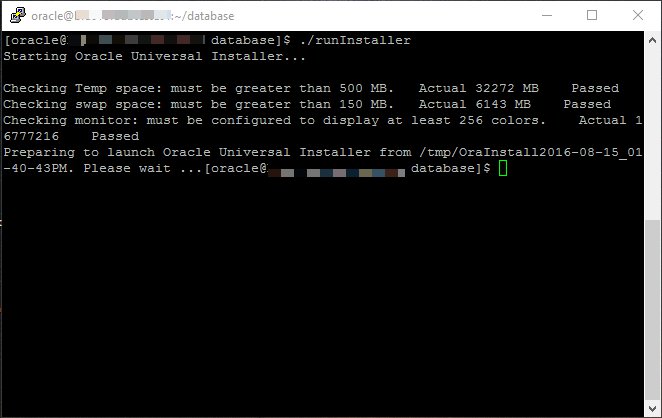
Start the Oracle Universal Installer (OUI) by issuing the following command in the database directory.
./runInstaller
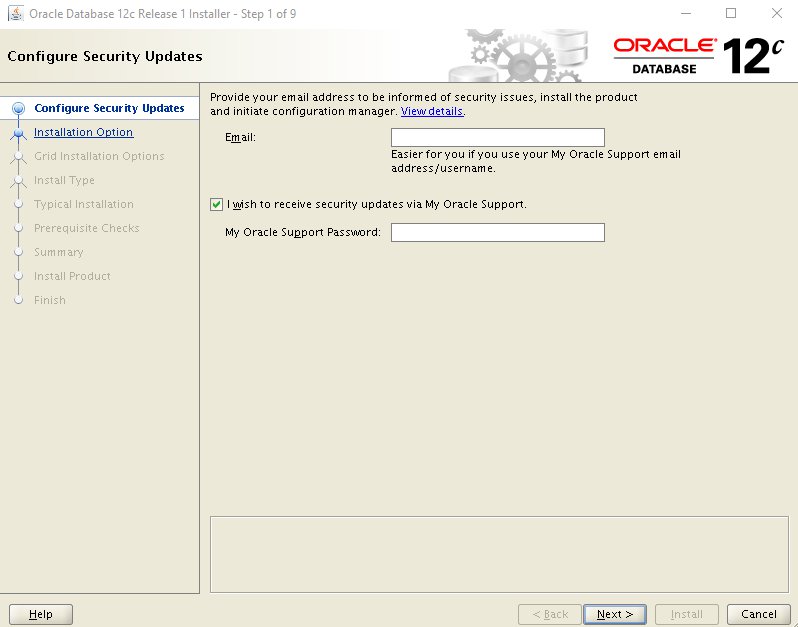
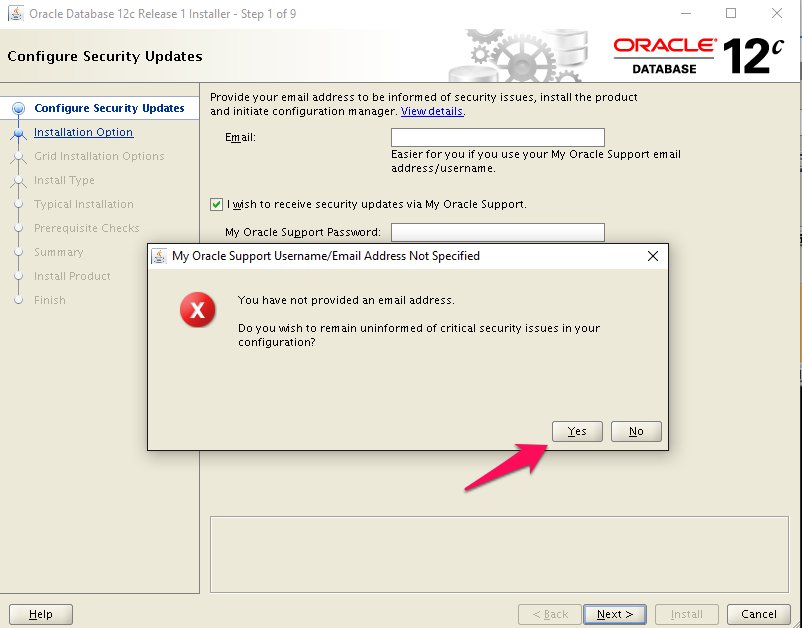
Proceed with the installation of your choice.
Step 1
Step 2
Step 3
Step 4
Step 5
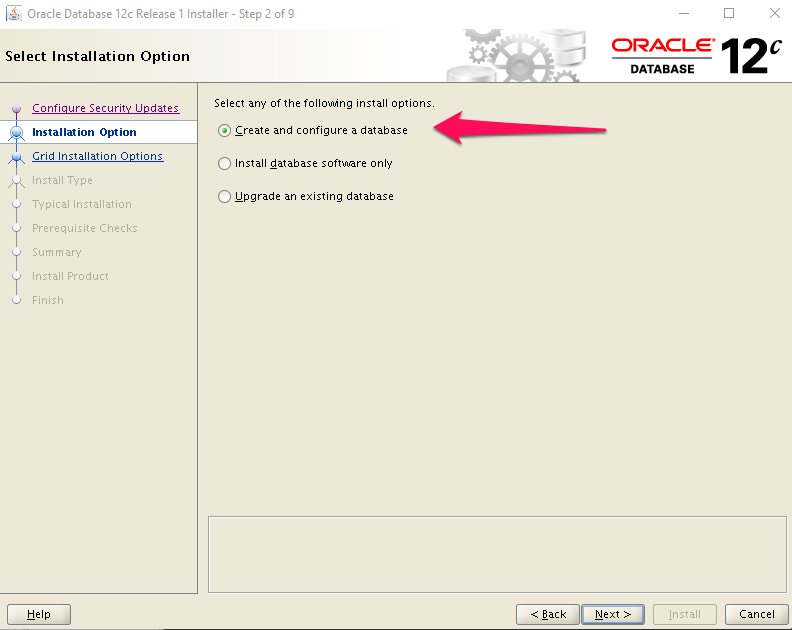
Step 6
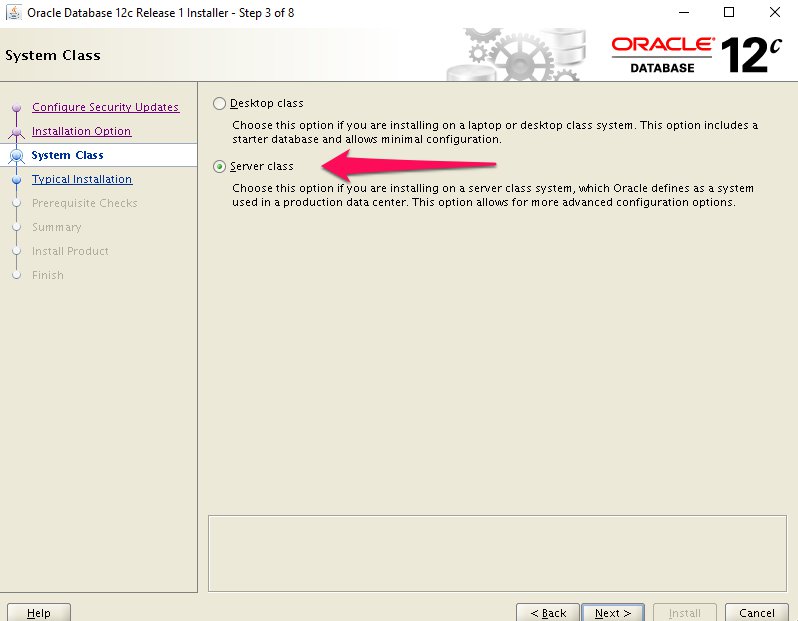
Step 7
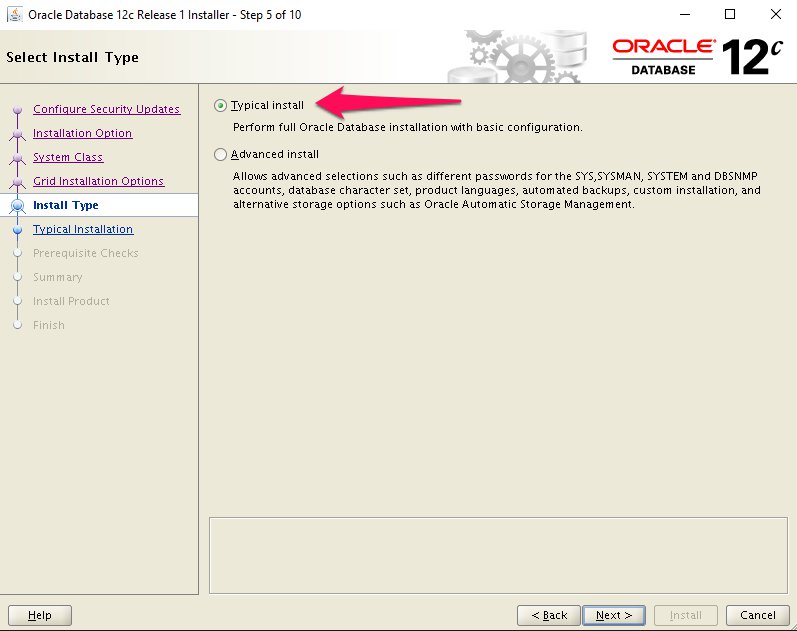
Step 8
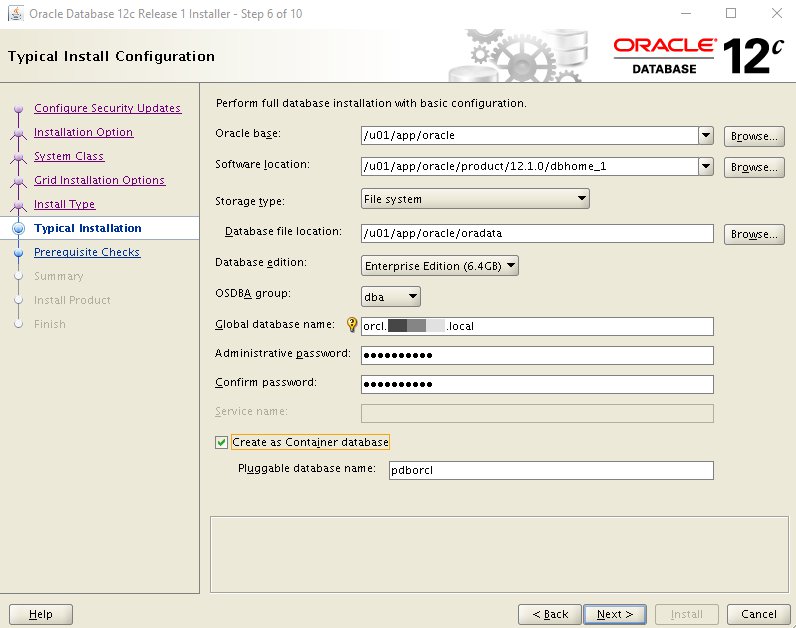
Step 9
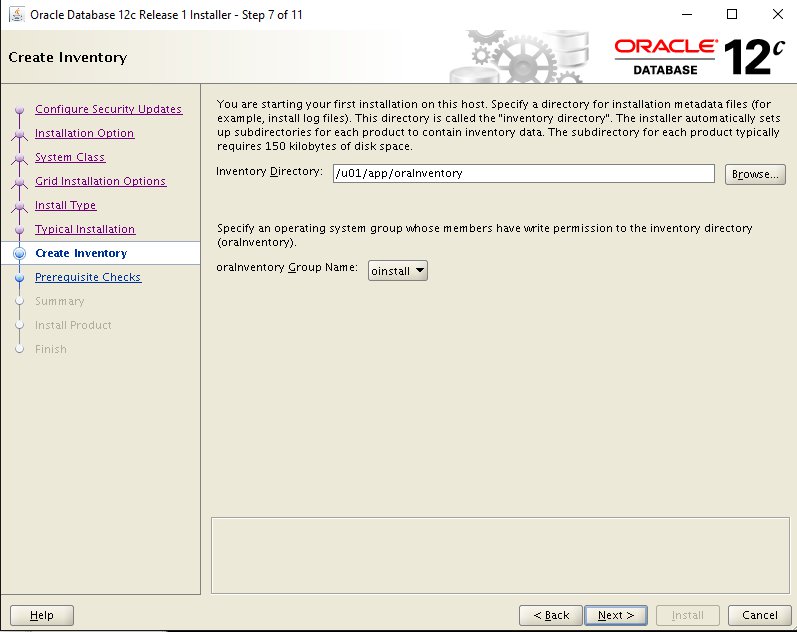
Step 10
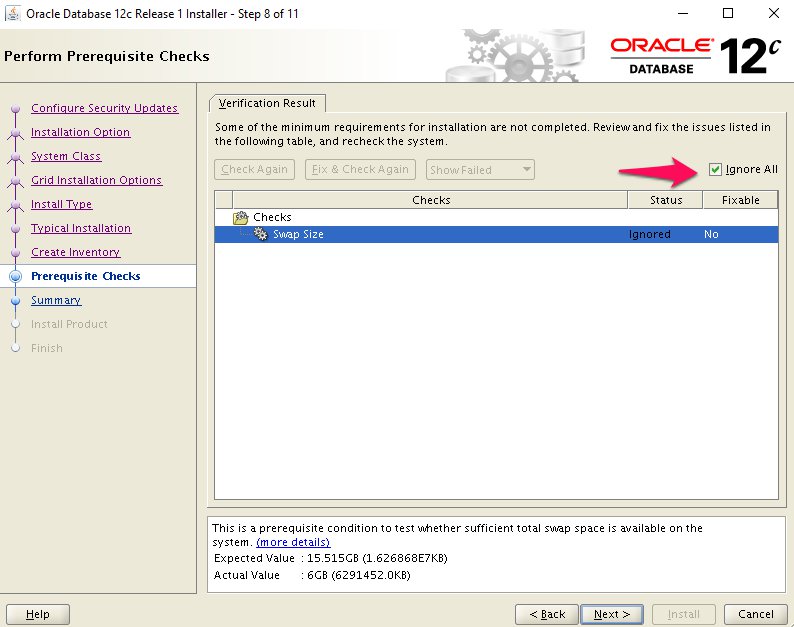
Step 11
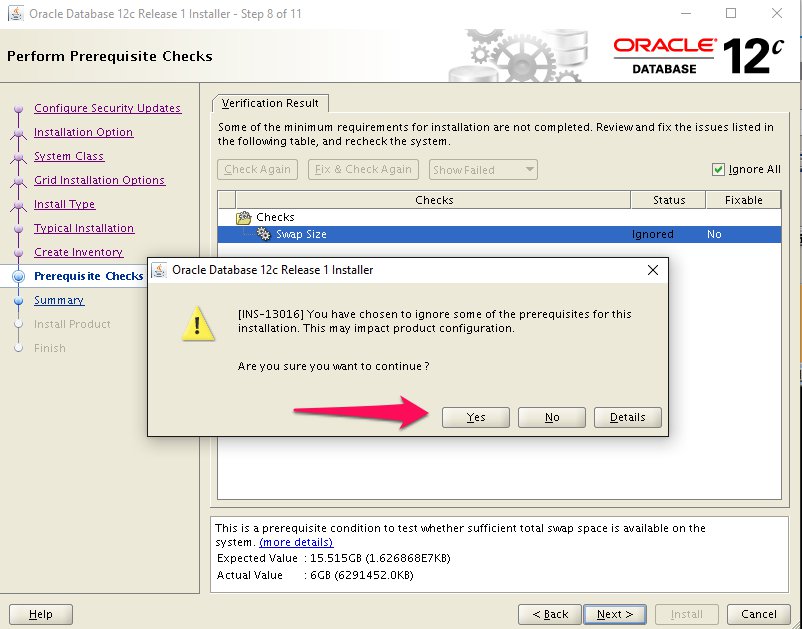
Step 12
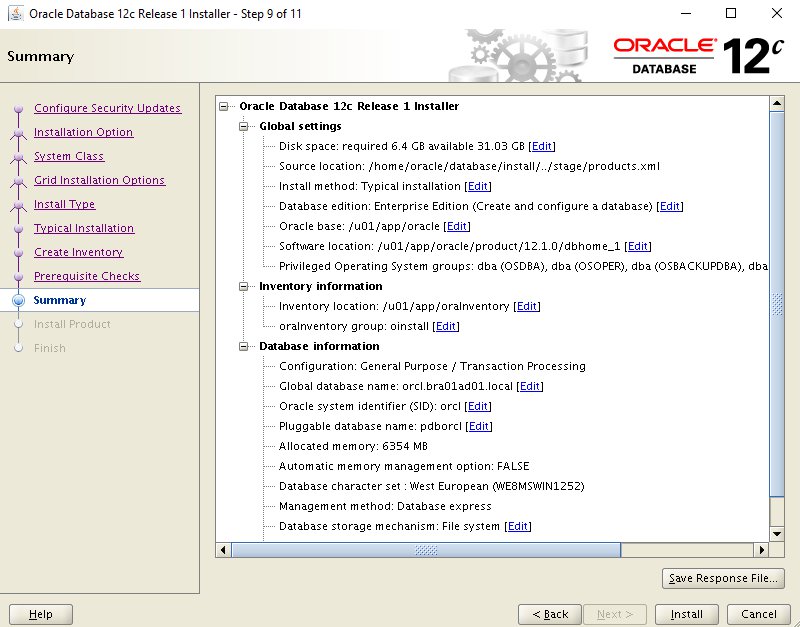
Step 13
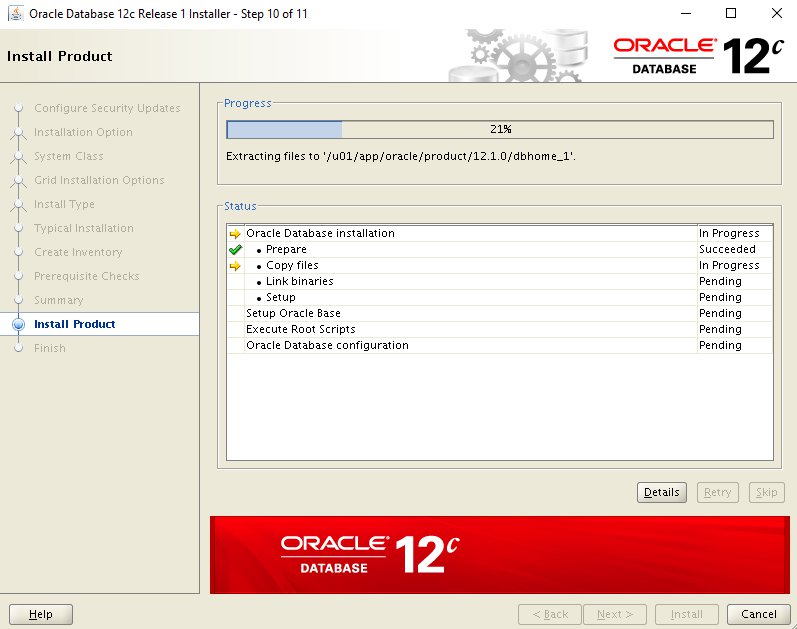
Step 14
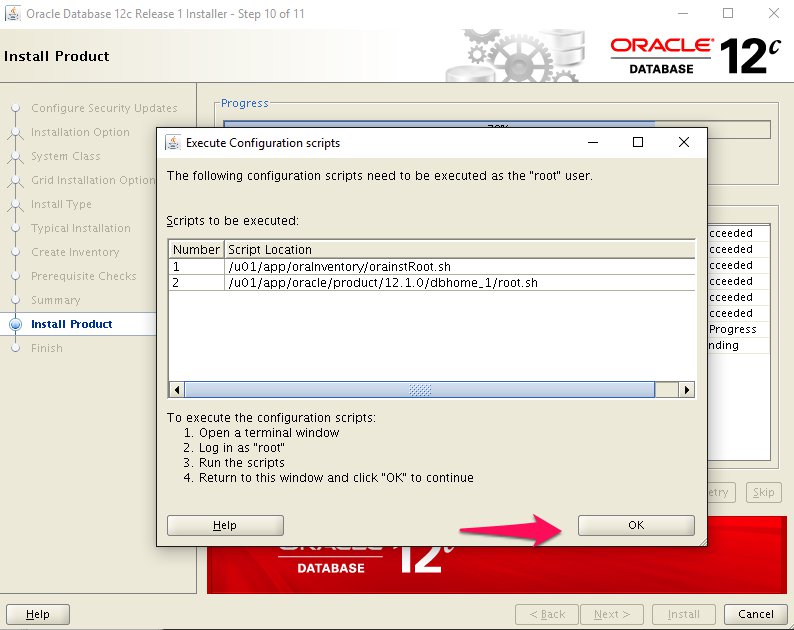
Step 15
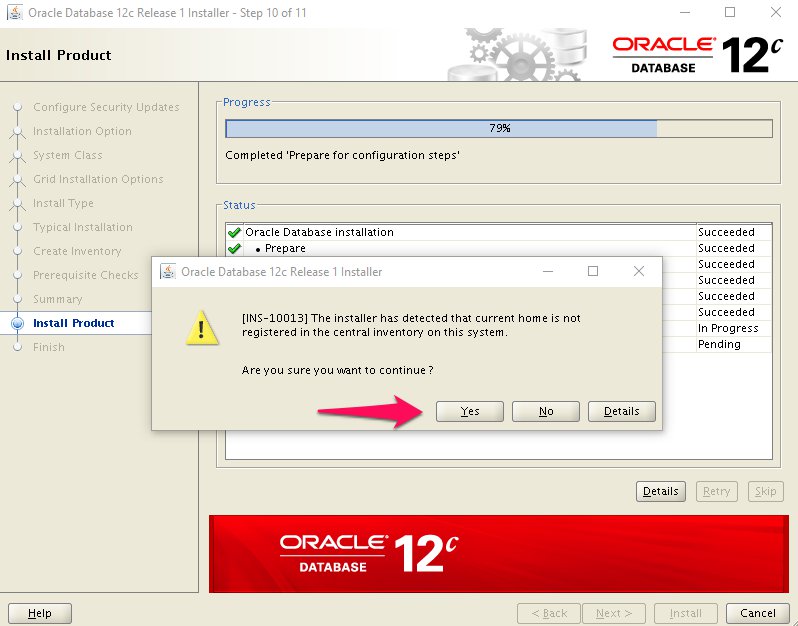
Step 16
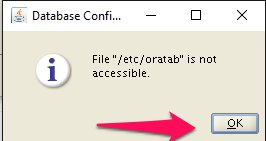
Step 17
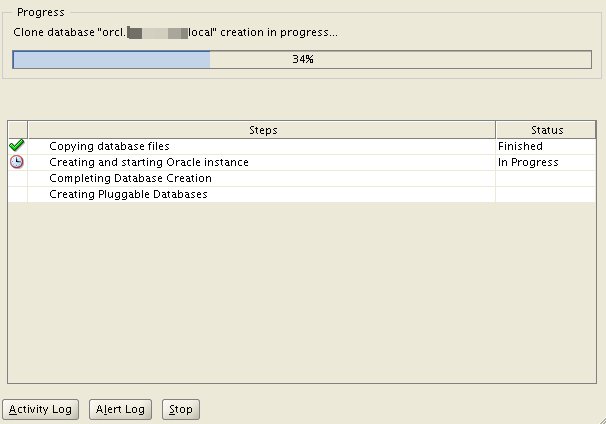
Step 18
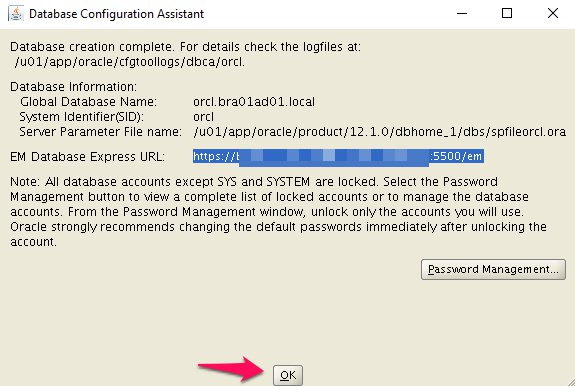
Step 19
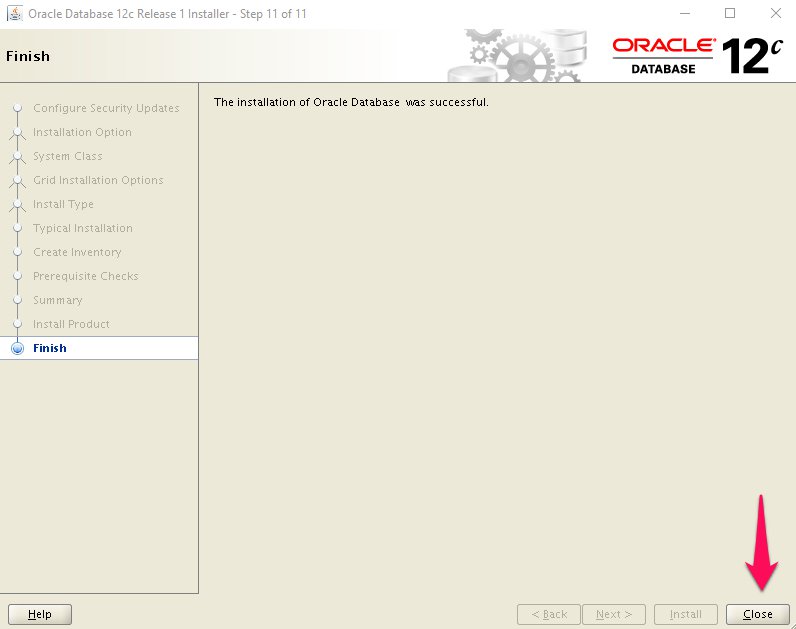
Step 20
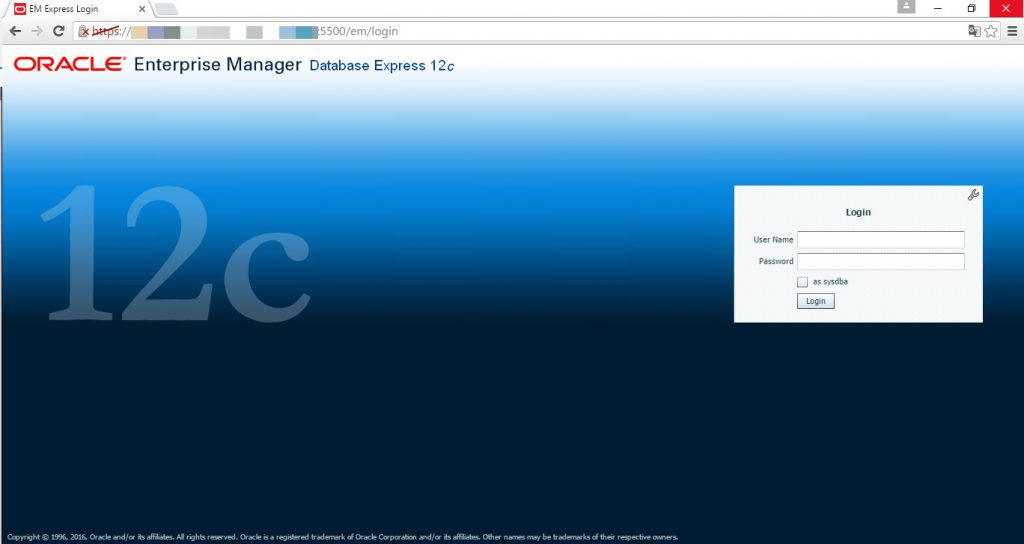
Step 21
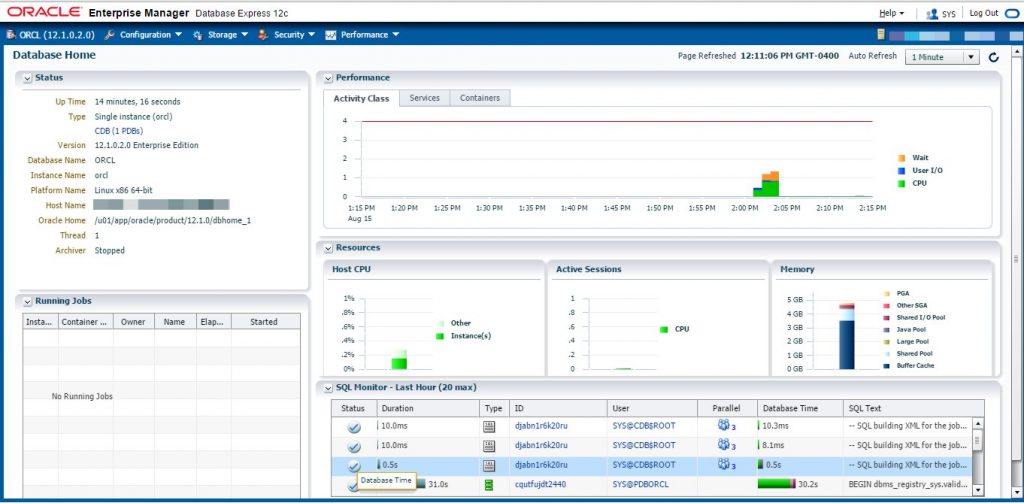
The installation was completed successfully.
Post Installation
Edit the “/etc/oratab” file setting the restart flag for each instance to ‘Y’.
cdb1:/u01/app/oracle/product/12.1.0.2/db_1:Y
If Database Express 12c is not working, check the XMLDB HTTP port. If it is 0, set it to the port you want to use.
SQL> SELECT dbms_xdb_config.gethttpsport FROM dual;
GETHTTPSPORT
------------
5500

SQL> EXEC dbms_xdb_config.sethttpsport(5500);

PL/SQL procedure successfully completed.

SQL>
Common Errors
That is all. Any doubts I am available.